Hands on With the UGREEN DH4300 Plus NAS – A Great NAS for Home or Small Office

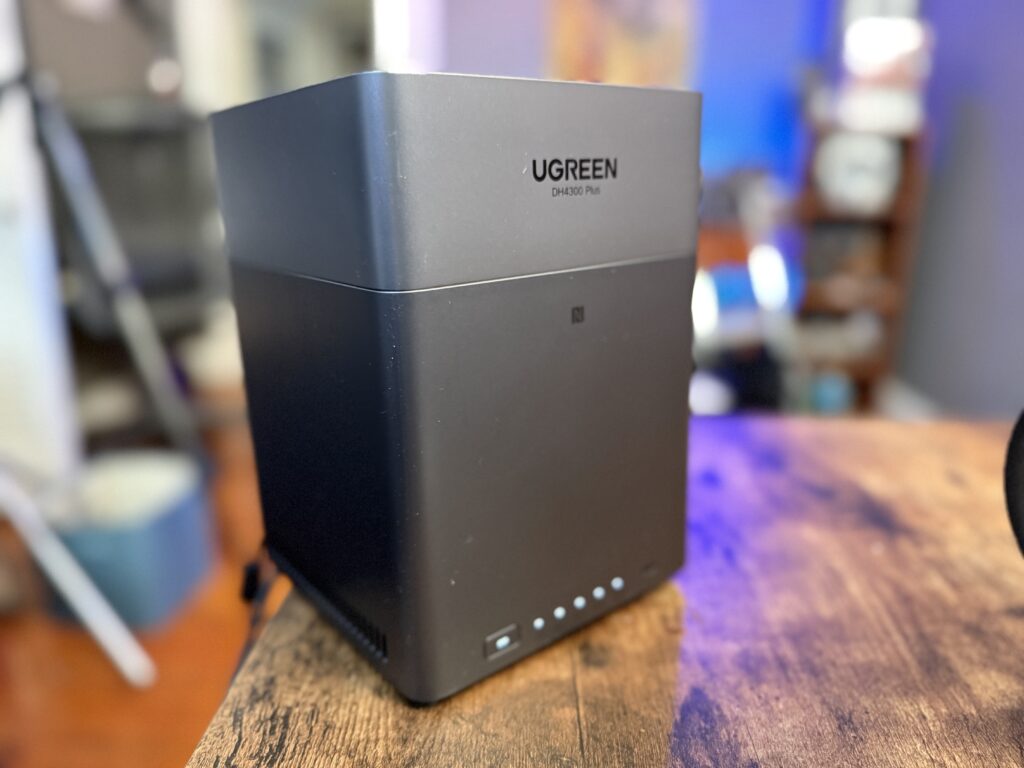
Table of Contents
-
 At A Glance
 -
Why a NAS
-
The Router Is The Key
-
UGREEN DH4300 Plus RAID Configuration and Storage Options
-
Setting Up the UGREEN DH4300 Plus
-
UGREEN DH4300 Plus App Ecosystem
-
Connecting the UGREEN DH4300 Plus to Mac and PC
-
UGREEN DH4300 Plus Speed and Real-World Performance
-
Should You Buy the DH4300 Plus?
-
More NAS Resources
The UGREEN DH4300 Plus is an affordable, easy-to-configure, and easy-to-use NAS system that’s perfect for home or small office.
At A Glance
A Network Attached Storage (NAS) device is a combination of a specialized hard drive enclosure and onboard software that makes the drive accessible to anyone on your network. A NAS is perfect for a multi-user environment where a team needs access to files, and individuals need a place to store files that isn’t their own desktops.
Every device in your home or office, from a laptop to a tablet, can access it at the same time. Think of it as a private cloud with no monthly subscription and no privacy worries.
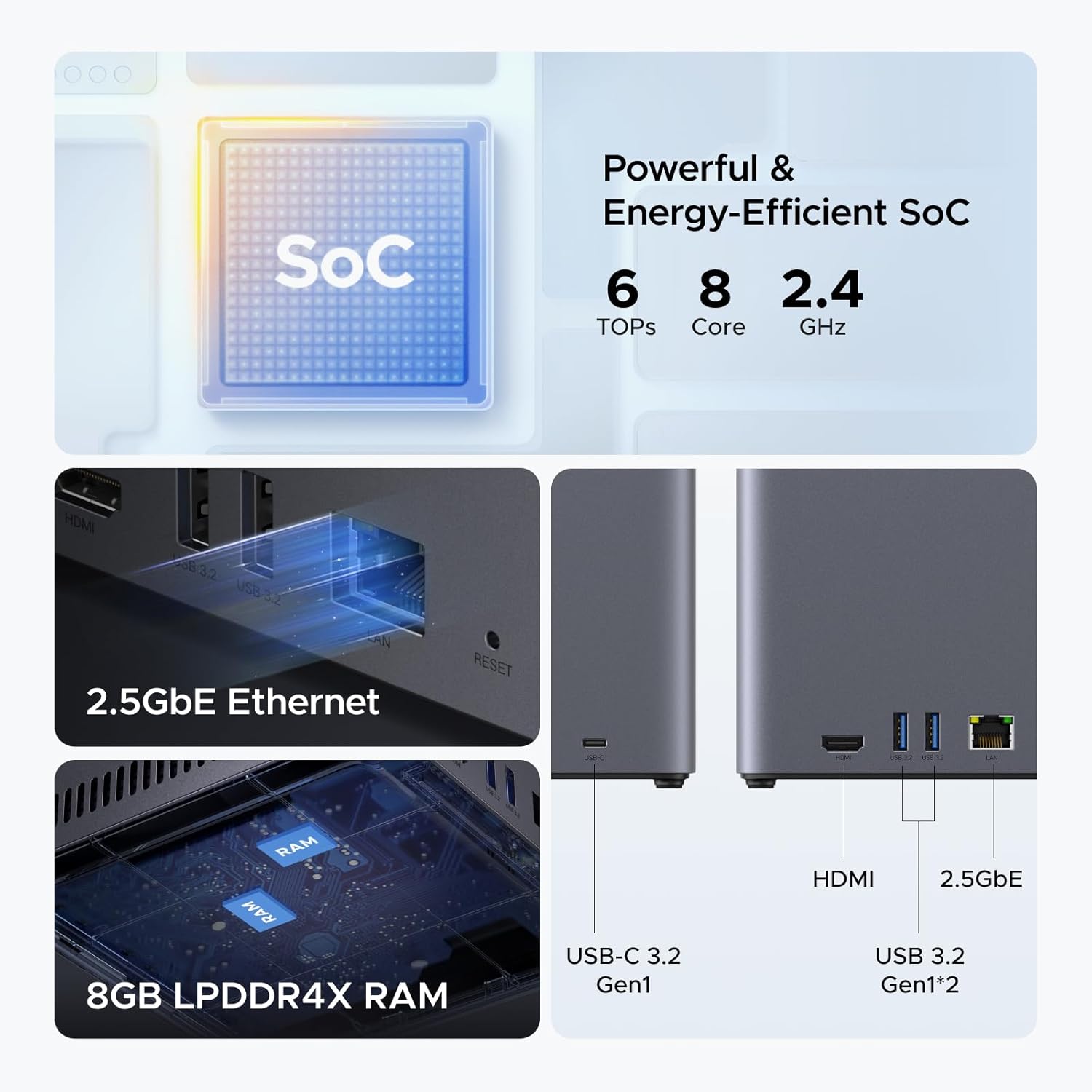
What separates the DH4300 Plus from a basic network drive is that inside the enclosure, it’s really an actual computer. The Intel N100 processor and 8 gigabytes of DDR5 RAM give it enough horsepower to run apps and server software, not just store files. It also has dual 2.5-gigabit Ethernet ports (that’s very fast), several USB 3.2 ports, a USB-C port, and an HDMI output.
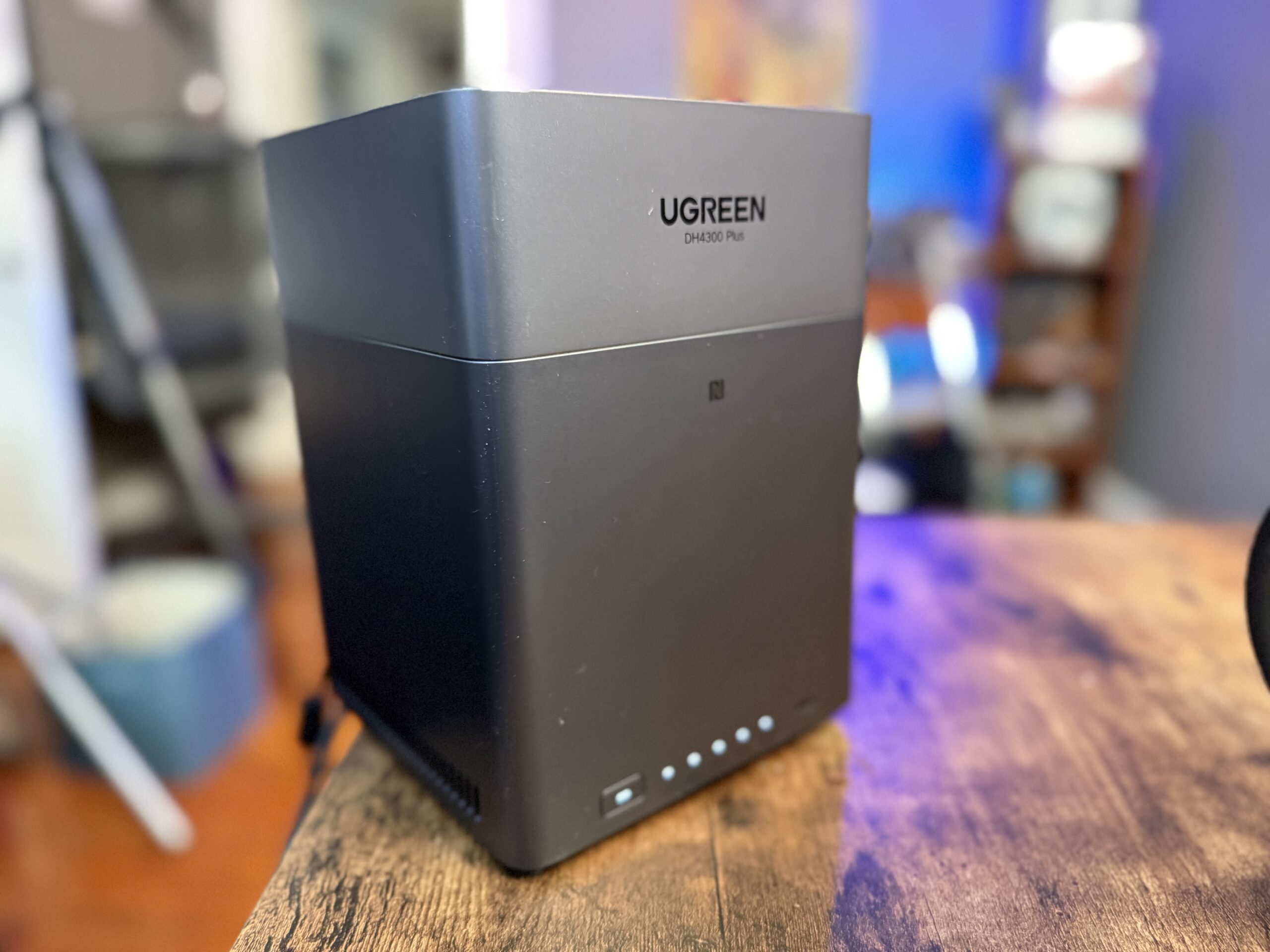
The UGREEN HD3400 Plus excels as a NAS thanks to fast setup, great software, and easy cross-platform usability.
Why a NAS
A NAS is a must-have device for any workspace with multiple users or for a single user who works from different locations in a home office or small office.
I’ve almost always worked from home, and before I got my first NAS, I would walk around with my laptop connected to a portable drive so I could hold all of my video files for editing. The massive size of a lot of footage requires me to use a dedicated hard drive at my desk, but when moving from room to room, I need something besides my laptop storage. Carrying around a drive was the only real way to make sure I had access anywhere in my home. That way, when I was at my desk or sitting in the kitchen having coffee, my files were always ready to go.
Dragging a hard drive around is honestly awful. I can’t count the number of times that I’ve been walking between rooms with my laptop and have dropped the hard drive. Forgetting the hard drive when I head to a coffee shop means I’d have left my files at home and had nothing to do.
Cloud storage is the solution to some of these problems, but it has its own headaches. Data coming from the cloud is limited by the speed of my internet connection. Even with a fast connection like my 1 Gig Fios connection, getting data from cloud systems is limited to how fast the servers want to send me files, which is often a throttled speed.
Cloud providers also charge based on the amount of data stored on their servers, so the more you use them, the more you pay.
A NAS solves all of these problems. There’s no cost aside from the original purchase price, no limitations on speed when accessing remotely. With the high-speed internet ports in the UGREEN DH4300 PLUS, data is transferred at three times the speed of the Fios internet connection. In practice, it’s just as fast as a hard drive connected to my Mac.
When I connect to the NAS over WiFi in my house, the speed is still fast enough to edit video, thanks to the speed of the NAS and the speed of my WiFi 7 router (though a WiFi 6 router would provide the same performance).
Not counting the time it takes to format the drives for use, setup took me all of ten minutes. Drop in the drives, plug it into a network connection, and install the software. That’s it.
The Router Is The Key
To run the UGREEN DH4300 Plus NAS, or any high-speed NAS, it’s key to have a router or hub that has 2.5Gb/second Ethernet ports. This speed means the data is transferred at 2.5 times the speed of that Gigabit Fios connection I have.
With a 2.5Gb/second connection, you can theoretically transfer a 100GB file in around four minutes. That same file would take about fifteen minutes on a 1Gb/second connection.
Without a hub or router that operates at that speed, your data transfer speed is limited to the speed of your slowest connection. So if your computer only has “Gig-E” (the slang for 1GB/second), you’re not going to get the most out of your NAS.
Many modern computers have Ethernet ports faster than 2.5Gb/sec; my Mac Studio has a 10Gb/sec port. You won’t get faster performance than 2.5 Gb/sec with a 10Gb/second port, but it will be more than fast enough to access the NAS and perform other tasks.
Most WiFi 6 and WiFi 7 routers have at least one 2.5 Gb/sec port, so any computer plugged into that over Ethernet will have that fast speed.
If you’re running a computer without a high-speed Ethernet port, you can buy a USB-C to Ethernet adapter that’s 2.5GGb/second or faster.
Again, if you’re connected wirelessly, you won’t have these same data speeds, but unless you’re doing video editing of raw 4K or higher files, the speed is still enough to get any task done.
UGREEN DH4300 Plus RAID Configuration and Storage Options
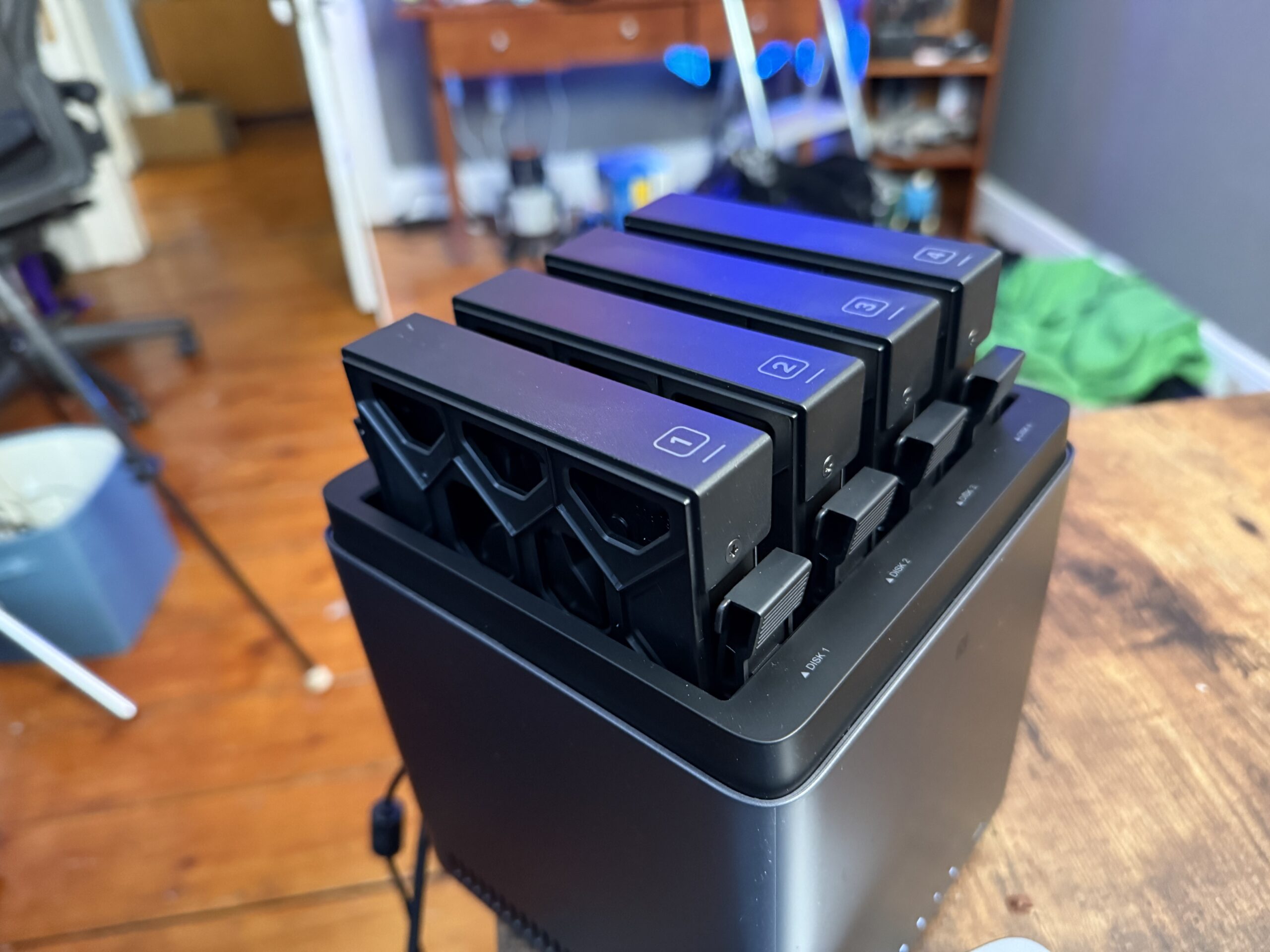
NAS uses a technology called RAID (Redundant Array of Independent Disks ) to manage the configuration of the drives. It is the system that determines how your drives work together, and four bays give you real options depending on how you weigh capacity against data protection.
At one extreme, RAID 0 pools all four drives into one large volume.
Four 4-terabyte drives give you 16 terabytes of usable space, but there’s no redundancy. If one drive fails, everything goes with it. At the other extreme, RAID 1 mirrors drives for maximum protection at the cost of half your capacity.
I went with RAID 5, which uses three drives for storage and one for parity data. If one drive dies, the array stays intact. You pull the failed drive, install a new one, and it rebuilds the data. It’s a practical balance between usable capacity and real-world data safety, and it’s what I’d recommend for most users. RAID 6 and RAID 10 are also available if you need protection against two simultaneous drive failures or want mirrored pairs.
Setting Up the UGREEN DH4300 Plus
The DH4300 Plus is designed for non-technical users. As I mentioned, the physical setup took me around ten minutes. UGREEN includes the drive mounting screws, and the sleds accommodate both 3.5-inch hard drives. The sleds slide into the bays without tools.
Software setup does require installing software. You can just type the device’s IP address into a browser and have it work. But the software walks you through RAID array creation, storage pool setup, and network configuration in a guided flow that makes sense even if you’ve never touched a NAS before. There’s even a mobile client so you can set up your NAS right from your iPhone.
Once configured, setting up user accounts and shared folders — a private folder for my own files, a shared media folder for the family.
UGREEN DH4300 Plus App Ecosystem
One of the things I didn’t expect was how varied the app ecosystem would be. Because the DH4300 Plus is running a powerful processor, it can host server software, not just store files.
UGREEN Photos functions like a self-hosted Google Photos, with date-based organization and face recognition, but your images never leave your network. Nextcloud is essentially a self-hosted Dropbox, with device sync, file sharing, and optional calendar and contacts functionality.
Docker is available for more technical users and opens up essentially any containerized application. A download manager called qBittorrent lets the NAS handle large file downloads without keeping your computer running. Surveillance Station adds IP camera support, turning the NAS into a security DVR without a cloud storage fee attached. That’s a lot of utility from one box.
Connecting the UGREEN DH4300 Plus to Mac and PC
On Windows, the DH4300 Plus shows up automatically in File Explorer once the device is running. Mac requires one extra step that tripped me up the first time.
To mount the NAS as a network drive on a Mac, you need to enable Samba in the software’s network settings. Samba is a protocol that lets Macs and PCs communicate with devices like NAS systems. It’s a little hidden in the settings menu, but it’s a one-time toggle. After that, you go to Finder, press Command-K, type smb:// followed by your NAS’s network name, and it appears like any other external drive.
UGREEN DH4300 Plus Speed and Real-World Performance
In my testing over a wired connection, I’m seeing around 300 megabytes per second, fast enough to edit 4K video in DaVinci Resolve directly from the NAS without copying files locally first.
That’s a genuine workflow change for video editors. Over WiFi, I’m getting around 50 megabytes per second, which handles 2K RAW footage and H.265 video up to 8K, wirelessly. For photographers doing any kind of retouching, that’s completely comfortable.
Remote access is built into UGOS Pro and walks you through setup without requiring any real networking knowledge. I find it works reliably when I’m traveling. My files are available from anywhere, not just at home. It’s not a differentiating feature compared to other NAS systems, but it’s worth knowing it’s there and that it’s not a complicated setup.
Should You Buy the DH4300 Plus?
If you’re a photographer or video creator who’s been paying for cloud storage and wondering whether a NAS makes sense, the DH4300 Plus is the most accessible entry point I’ve tested. The setup process is beginner-friendly. Getting four drives installed, a RAID array configured, and user folders created took me an hour, not a weekend.
Since you can use either the UGREEN app or connect by just entering the IP address of your NAS into any browser, you can configure the system from anywhere in your office.
For photographers and creators who want their own private storage, their own media server, and their own backup ecosystem without a monthly bill attached, and who don’t want to become a systems administrator to get NAS features, the UGREEN DH4300 Plus is an excellent choice.
More NAS Resources
Read our NAS Buyer’s Guide for more great NAS choices.